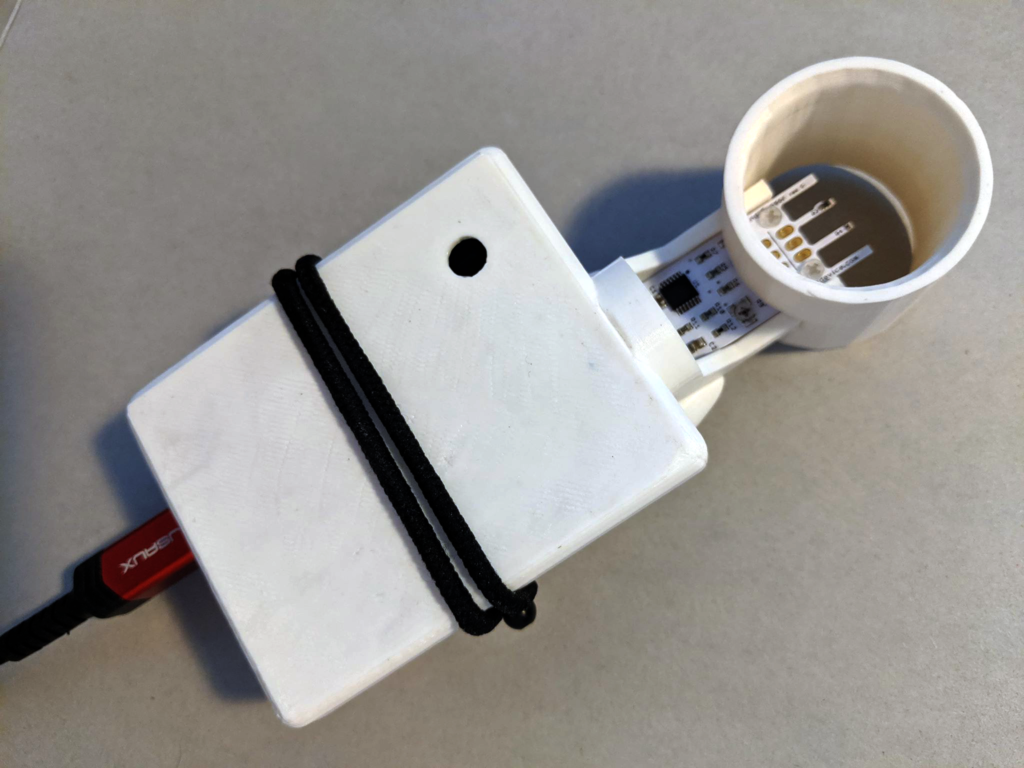
This is a game controller that enables the player to blow fire into the virtual world. It started out as a study of an electronic sensor and the findings were satisfying. The response time between the player action and sensing speed is quick enough for me to turn it into a meaningful and embodied play experience.
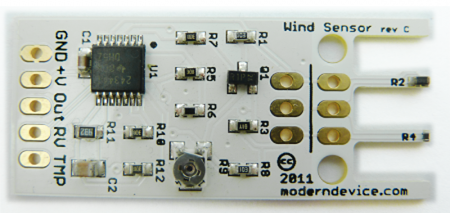
I purchased two wind sensors from ModernDevice.com many years ago, finally inspired to do something with them.
Wind Sensor Rev. C:
https://moderndevice.com/product/wind-sensor/
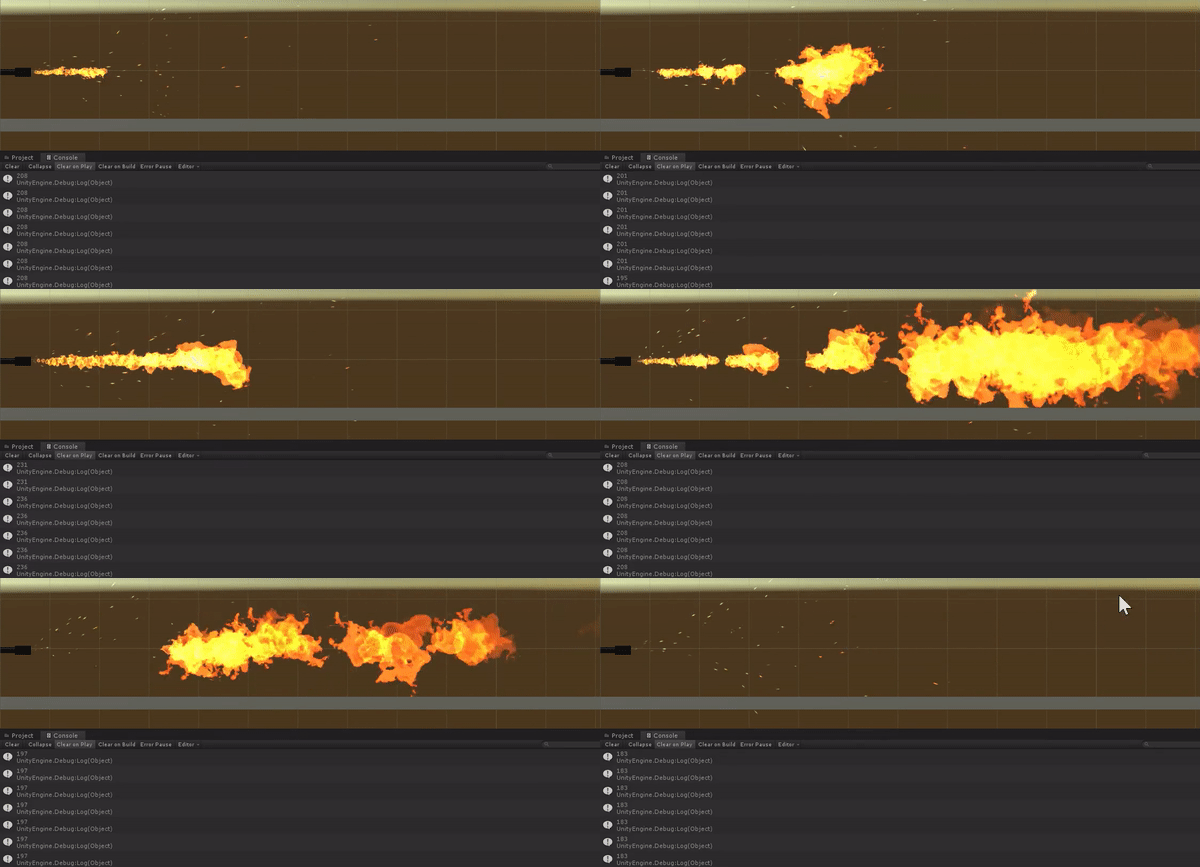
The first thing that came to me is Sasuke’s Great Fire Ball Jutsu (
Gougakyu No Jyutsu 豪火球の術).

The setup is pretty straight forward with Arduino, all I needed to do to read the RV pin with the analogRead. The sensor is capable of picking up very subtle changes in air movement around it. It works really well with detecting breath as well. I hooked it up to a flamethrower in Unity3D. I linked the serial data to the startSize and startSpeed properties of the particleSystem. Fireball is coming!
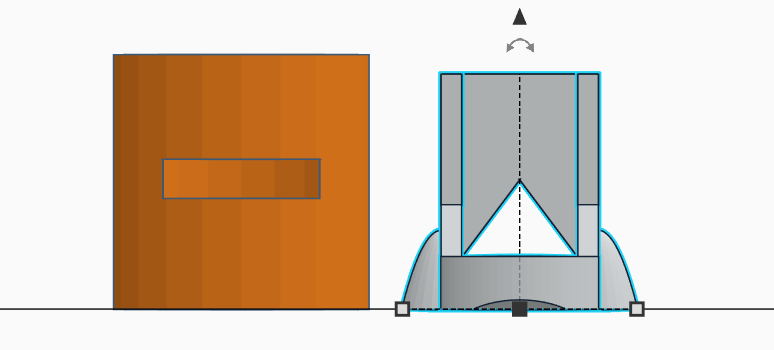
I made a stand for it on Tinkercad, so I can mount it on to my Arduino box. I also made a tube-like windshield to go around the sensor. By doing so, I was able to eliminate air coming from other directions and boost the strength of the reading by up to 20.

/*

 Hardware Setup:
 Wind Sensor Signals    Arduino
 GND                    GND
 +V                     5V
 RV                     A1

 Vibration
 Signal                 A3

 LED
 PIN                    6

*/

#define analogPinForRV 1  // change to pins you the analog pins are using
#define analogPinForPR 3
#define LEDPIN 6

const float zeroWindAdjustment = .2;  // negative numbers yield smaller wind speeds and vice versa.

int ANALOG1, ANALOG2;

void setup() {
  // put your setup code here, to run once:
  // initialize serial communication at 9600 bits per second:
  Serial.begin(115200);
  Serial.println("start");

  pinMode(LEDPIN, OUTPUT);
  digitalWrite(LEDPIN, HIGH);
}

// the loop routine runs over and over again forever:
void loop() {

  ANALOG1 = analogRead(analogPinForRV);
  ANALOG2 = analogRead(analogPinForPR);

  // print out the value you read:
  Serial.print(ANALOG1);
  Serial.print('|');
  Serial.println(ANALOG2);
  delay(10);  // delay in between reads for stability
}